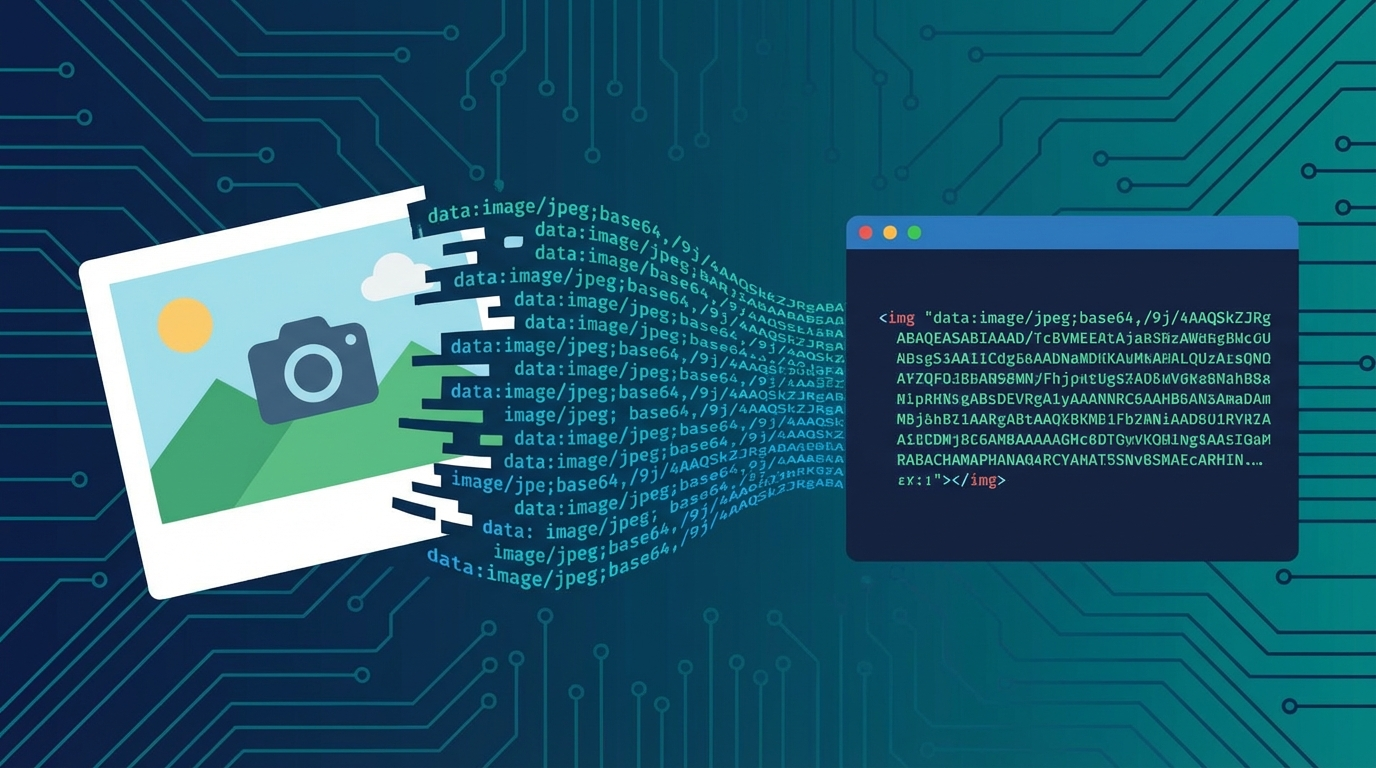
How to Base64 Encode Images: A Complete Guide
Learn how to convert images to Base64 for inline embedding in HTML, CSS, and APIs. Understand when it helps performance and when it hurts.
You have probably seen it in the wild — a monstrous string of characters where an image URL should be:
<img src="data:image/png;base64,iVBORw0KGgoAAAANSUhEUgAAAAoAAAAK..." />That is a Base64-encoded image embedded directly in HTML. No external file. No HTTP request. The entire image lives inside the markup as a text string.
It is a powerful technique — when used correctly. It is also a performance disaster when used wrong. Let us break down exactly when and how to Base64-encode images.
Why Encode Images as Base64?
Every image on a web page normally requires a separate HTTP request:
Page loads → Browser finds <img src="logo.png"> → Sends request to server → Waits for response → Renders imageFor a page with 20 images, that is 20 round-trips. Each one adds latency, DNS lookups, and connection overhead.
Base64-encoded images eliminate those requests by embedding the image data directly in the HTML or CSS:
Page loads → Browser finds Base64 data → Renders image immediatelyZero additional requests. The image is right there in the document.
How to Convert an Image to Base64
Command Line
# Linux / macOS
base64 logo.png | tr -d '\n'

# Or with output file
base64 logo.png > logo.b64
JavaScript (Node.js)
const fs = require('fs');

const image = fs.readFileSync('logo.png');
const base64 = image.toString('base64');
const dataUri = `data:image/png;base64,${base64}`;

console.log(dataUri);
JavaScript (Browser)
// From a file input
const fileInput = document.querySelector('input[type="file"]');
fileInput.addEventListener('change', (e) => {
  const file = e.target.files[0];
  const reader = new FileReader();

  reader.onload = () => {
    console.log(reader.result); // data:image/png;base64,...
  };

  reader.readAsDataURL(file);
});
Python
import base64

with open('logo.png', 'rb') as f:
    encoded = base64.b64encode(f.read()).decode()

data_uri = f'data:image/png;base64,{encoded}'
PHP
$image = file_get_contents('logo.png');
$base64 = base64_encode($image);
$dataUri = "data:image/png;base64," . $base64;
Online Tool
The fastest option: drop your image into Image to Base64 and get the encoded string instantly — no code required.
Data URI Format
A data URI has this structure:
data:[media-type][;base64],<data>Common image MIME types:
| Format | MIME Type | Data URI Prefix |
|---|---|---|
| PNG | image/png | data:image/png;base64, |
| JPEG | image/jpeg | data:image/jpeg;base64, |
| GIF | image/gif | data:image/gif;base64, |
| SVG | image/svg+xml | data:image/svg+xml;base64, |
| WebP | image/webp | data:image/webp;base64, |
| AVIF | image/avif | data:image/avif;base64, |
Note: SVG can also be embedded without Base64 encoding using URL encoding:
<img src="data:image/svg+xml,%3Csvg xmlns='http://www.w3.org/2000/svg'..." />Using Base64 Images in HTML
Inline <img> Tags
<img
  src="data:image/png;base64,iVBORw0KGgoAAAANSUhEUgAAAAoAAAAKCAYAAACNMs+9AAAAFklEQVQYV2P8z8BQz0AEYBxVOHIUAgAGWwkJBzLRbgAAAABJRU5ErkJggg=="
  alt="Small red dot"
  width="10"
  height="10"
/>
CSS Background Images
.icon-search {
  background-image: url(data:image/svg+xml;base64,PHN2ZyB4bWxucz0i...);
  background-size: contain;
  width: 24px;
  height: 24px;
}
Email HTML
Many email clients block external images by default but render Base64-embedded images. This makes Base64 useful for email logos, icons, and small graphics:
<img src="data:image/png;base64,iVBORw0..." alt="Company Logo" style="width: 150px;" />Caveat: Some email clients (notably Outlook) have mixed support for data URIs. Test thoroughly.
Performance: When Base64 Helps
Small Images (Under ~2KB)
For tiny icons, 1x1 tracking pixels, and small UI elements, Base64 is a net win. The overhead of an HTTP request (DNS lookup + TCP handshake + TLS negotiation + request + response) far exceeds the 33% size increase from Base64 encoding.
Rule of thumb: If the image is under 2KB, embed it. If it is over 10KB, do not.
Critical Rendering Path
Images that appear above the fold and are essential for initial render can benefit from inlining. The browser does not have to wait for a separate request — the image data arrives with the HTML.
CSS Sprites Replacement
Instead of complex sprite sheets with background-position offsets, you can Base64-encode individual small icons in CSS. Modern tooling (Webpack, Vite, PostCSS) can automate this.
Single-Request Pages
For offline-capable pages or environments where minimizing HTTP requests is critical (email, embedded devices, kiosk apps), Base64 inlining ensures everything loads in one shot.
Performance: When Base64 Hurts
Large Images
A 100KB PNG becomes ~133KB as Base64. But the real cost is worse than the 33%:
- No caching: External images get cached by the browser. Base64 images embedded in HTML are re-downloaded every time the page loads.
- Blocks rendering: Inline Base64 images increase HTML size, which delays the entire page parse.
- No lazy loading: You cannot
loading="lazy"a Base64 image — it is already in the document.
Repeated Images
If the same icon appears 50 times on a page, an external file is loaded once and reused. A Base64 string is duplicated 50 times in the HTML.
CSS File Bloat
Base64 images in CSS files bloat the stylesheet, delaying first paint. If your CSS is 200KB because of embedded images, the browser cannot render anything until that entire file is downloaded and parsed.
Best Practices
DO:
- ✅ Encode images under 2KB (small icons, UI elements)
- ✅ Use for email templates where external images are blocked
- ✅ Use for critical above-the-fold elements that must render immediately
- ✅ Let your build tool handle it (Webpack
url-loaderwith a size limit) - ✅ Use SVG data URIs for vector icons (often smaller than Base64 PNG)
DO NOT:
- ❌ Encode images over 10KB
- ❌ Encode photographs (use
<img>with srcset and lazy loading) - ❌ Embed the same Base64 image multiple times in one page
- ❌ Use Base64 for images that benefit from CDN caching
- ❌ Manually paste Base64 strings — use build tooling
Build Tool Integration
Webpack (url-loader)
// webpack.config.js
module.exports = {
  module: {
    rules: [{
      test: /\.(png|jpg|gif|svg)$/,
      type: 'asset',
      parser: {
        dataUrlCondition: {
          maxSize: 2 * 1024, // 2KB — inline as Base64
        },
      },
    }],
  },
};
Vite
// vite.config.js
export default {
  build: {
    assetsInlineLimit: 2048, // 2KB
  },
};
Both tools automatically inline small images as Base64 data URIs and keep larger images as external files — the best of both worlds.
Base64 Images in APIs
When building APIs that accept image uploads, Base64 is a common transport format:
{
  "avatar": {
    "contentType": "image/jpeg",
    "data": "/9j/4AAQSkZJRgABAQAAAQABAAD/2wBDAAgGBgcG..."
  }
}
This is simpler than multipart form uploads for small images, but for large files, multipart is more efficient (streaming, progress tracking, lower memory usage).
API best practices:
- Set a maximum allowed size (e.g., 5MB) and reject larger payloads
- Validate the MIME type matches the actual content
- Decode and re-encode server-side to strip potential exploits
- Consider accepting both Base64 and multipart, letting the client choose
FAQ
How much larger does an image get when Base64 encoded?
Approximately 33% larger. Base64 converts every 3 bytes of binary data into 4 ASCII characters, plus potential padding. A 10KB image becomes roughly 13.3KB as Base64 text.
Can I Base64 encode any image format?
Yes. Base64 works on raw bytes, so PNG, JPEG, GIF, WebP, AVIF, SVG, BMP, TIFF — any format can be encoded. The data URI's MIME type prefix tells the browser which format it is.
Do Base64 images work in all browsers?
Data URIs with Base64 images are supported in all modern browsers (Chrome, Firefox, Safari, Edge) and have been for over a decade. IE8+ had basic support with a 32KB limit; modern browsers have no practical size limit (though performance degrades with large strings).
Should I Base64 encode images for better SEO?
Generally no. Search engines can index external images and display them in image search results. Base64-encoded images are invisible to image search. Use external images with proper alt text and filenames for SEO; use Base64 only for decorative/UI elements.
How do I decode a Base64 image back to a file?
Use Base64 to Image to paste a Base64 image string and preview the decoded file. Programmatically, use your language's Base64 decode function and write the bytes to a file.
Is there a maximum size for Base64 data URIs?
There is no spec-defined limit. In practice, modern browsers handle data URIs in the tens of megabytes. However, for performance reasons, keep inline Base64 images under 10KB. Larger images should be external files served through a CDN.
Experimente você mesmo
Use nossa ferramenta online gratuita para começar imediatamente